How to Save Spotify Songs to Your Computer Permanently
Let’s be honest—streaming is convenient, but it doesn’t always feel secure. You build the perfect playlist, download it inside Spotify, and then one day your subscription expires or a song disappears due to licensing issues. Just like that, it’s gone.
If you’re wondering how to save Spotify songs to your computer permanently, you’re not alone. Many users want more control over their music collection. They want real files—MP3s they can store, back up, and play anytime without depending on Spotify’s app or subscription.
In this guide, we’ll walk through everything you need to know in simple, practical steps.
Understanding Spotify’s Built-In Download Limitations
Before jumping into solutions, it’s important to understand something clearly: Spotify does not allow permanent downloads in a traditional sense.
Even with Spotify Premium:
- Downloads stay inside the Spotify app.
- Files are encrypted.
- You can’t transfer them to USB or other players.
- If your Premium subscription ends, access disappears.
Think of it like borrowing a book from a digital library. You can read it offline—but you don’t own it.
So if you’re looking for true permanent storage on your computer, you’ll need an alternative method.
Method 1: Using Spotify’s Official Offline Mode (Limited Option)
If your goal is simply offline listening on your computer, and you don’t need actual MP3 files, here’s how:
- Install the Spotify desktop app (Windows or Mac).
- Log in to your Premium account.
- Open a playlist.
- Toggle the “Download” switch.
- Wait for the green arrow icon to appear.
This allows offline playback within the app.
But remember:
- Files remain encrypted.
- You cannot access them directly from your computer’s folders.
- Spotify must verify your account online at least once every 30 days.
If you want real ownership, keep reading.
Method 2: Using a Spotify Music Converter (Permanent Solution)
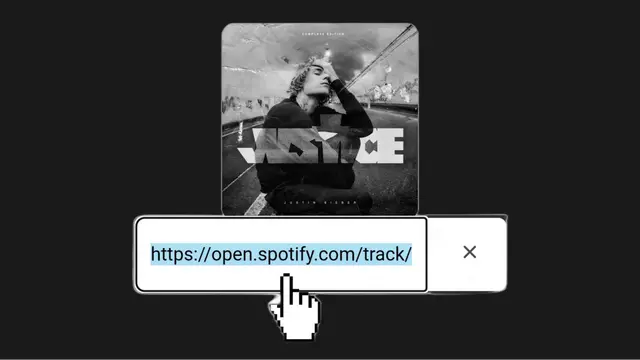
To permanently save Spotify songs to your computer as MP3 files, many users turn to Spotify music converter tools. These tools convert Spotify tracks into common formats like MP3, WAV, or FLAC.
Here’s how the general process works:
Step 1: Choose a Reliable Converter
Look for well-known music converters with good reviews. Avoid suspicious websites that ask for unnecessary permissions.
Popular converters typically:
- Support MP3, WAV, FLAC
- Maintain high audio quality
- Allow batch downloads
Always download from the official website of the software.
Step 2: Install the Software
Once downloaded:
- Install the converter on your computer.
- Open the application.
- Log in to your Spotify account inside the tool (if required).
Some converters sync directly with the Spotify desktop app.
Step 3: Copy and Paste the Spotify Song or Playlist Link
- Open Spotify.
- Click the three dots next to a song or playlist.
- Click “Share.”
- Copy the link.
- Paste it into the converter software.
The program will scan and display the tracks available for conversion.
Step 4: Choose Output Format and Quality
Select your preferred format:
- MP3 (most common and compatible)
- WAV (larger file, high quality)
- FLAC (lossless quality)
Set bitrate (320kbps recommended for high quality).
Choose a destination folder on your computer where the files will be saved.
Step 5: Start the Conversion
Click the “Convert” button.
The software will process the tracks and save them as normal audio files on your computer. Once completed, you’ll find them in your selected folder—ready to play, transfer, or back up.
Now the songs are permanently saved as independent files.
Where Are the Files Saved?

Most converters let you choose the save location. Typically, users select:
- Desktop
- Downloads folder
- Music folder
You can organize them by:
- Artist
- Album
- Playlist name
This makes managing your library much easier in the long run.
Important Legal Considerations
Here’s something you should keep in mind.
Spotify’s terms of service do not allow unauthorized downloading or distribution of music outside their platform. Converting songs for personal use exists in a legal gray area depending on your country.
To stay responsible:
- Use downloaded music for personal listening only.
- Do not share, upload, or sell the files.
- Support artists by maintaining your subscription if possible.
Respecting copyright laws protects both you and the creators.
Alternative: Recording Spotify Audio

Another method some users choose is recording Spotify audio in real time using screen/audio recording software.
Here’s how it works:
- Install audio recording software (like Audacity).
- Play the Spotify song.
- Record system audio.
- Save as MP3.
This method takes longer because it records in real time. A 3-minute song takes 3 minutes to record. But it doesn’t require direct file conversion tools.
Still, it’s less efficient for large playlists.
Tips for Organizing Your Permanent Music Library
Once you have your MP3 files, keep things organized:
- Create folders by genre or artist.
- Rename files properly.
- Back up your collection on an external drive.
- Consider using cloud storage for extra security.
Imagine losing your hard drive tomorrow. A backup ensures your collection survives.
Building a permanent music library is like creating your own digital record shelf. Treat it carefully.
Final Thoughts
Saving Spotify songs to your computer permanently requires going beyond Spotify’s built-in download feature. While Premium allows offline listening, it doesn’t provide true file ownership.
If you want permanent access, using a reliable Spotify music converter is the most efficient method. It allows you to store songs as MP3 files, organize them freely, and back them up securely.
Just remember to use these files responsibly and respect copyright guidelines.
Streaming is convenient—but owning your music collection? That’s peace of mind.
Navigation
Descargador de álbumes de Spotify
Laden Sie die Spotify Playlist
lista de reproducción de spotidown
Spotidown – Baixar Músicas do Spotify em MP3 Grátis