Download Spotify Music on Chromebook
Introduction
Chromebooks have quietly become one of the most popular devices for students, remote workers, and casual users. They’re lightweight, affordable, and surprisingly powerful for everyday tasks. But here’s the big question many music lovers ask: can you download Spotify music on a Chromebook for offline listening?
If you’ve ever been stuck without Wi-Fi on a road trip, in class, or during a flight, you already know how important offline music can be. Streaming is great—until it isn’t. Spotty connections, buffering songs, and draining data plans can turn your favorite playlist into a frustrating experience.
The good news? Yes, you can download Spotify music on a Chromebook. But the method you use depends on your Chromebook model, your Spotify subscription, and how comfortable you are with a bit of setup.
In this complete guide, we’ll walk through every possible method—from the easiest solution using the Google Play Store to more advanced options like Linux installation. We’ll also cover troubleshooting, storage tips, and everything you need to make your Chromebook a portable music powerhouse.
Let’s dive in.
Understanding Spotify on Chromebook
Before we jump into the how-to steps, it’s important to understand how Spotify works on a Chromebook. Unlike traditional laptops that run Windows or macOS, Chromebooks run ChromeOS, which changes the way apps are installed and used.
What Is a Chromebook and How Does It Work?
A Chromebook isn’t your typical laptop. It runs on ChromeOS, a lightweight operating system built around the Google Chrome browser. Instead of installing traditional desktop programs like you would on Windows or Mac, most applications are web-based or downloaded from the Google Play Store.
Think of a Chromebook as a supercharged web browser. It’s optimized for speed, cloud storage, and online tasks. That’s why it boots up in seconds and rarely slows down.
Modern Chromebooks also support:
- Android apps from the Google Play Store
- Linux applications (via Crostini)
- Progressive Web Apps (PWAs)
This flexibility means Spotify can run in multiple ways—but not all methods support offline downloads.
Understanding your Chromebook’s capabilities is the first step. If your device supports Android apps, you’re in luck. That’s the easiest and most reliable way to download Spotify music for offline listening.
Can You Install Spotify on a Chromebook?

Yes, you can install Spotify on a Chromebook. But there are three main ways to access it:
- Spotify Android App (Best Option)
- Spotify Web Player
- Spotify Linux Desktop Version
Each method has its own strengths and limitations.
The Android app offers full functionality, including offline downloads (for Premium users). The web player works smoothly but does not allow offline downloads. The Linux version behaves like a traditional desktop app and also supports offline playback—but setup is more technical.
So, which one should you choose?
If your Chromebook supports Google Play Store apps, that’s the fastest and simplest route. It’s clean, intuitive, and designed for touchscreens as well.
If not, Linux installation becomes your alternative.
In short: yes, Spotify works beautifully on Chromebook—but your ability to download music depends on how you install it.
Spotify Free vs. Spotify Premium on Chromebook
Here’s the truth: you cannot download songs for offline listening with Spotify Free.
Spotify Premium is required for offline downloads, no matter what device you use—including a Chromebook.
Let’s break it down:
| Feature | Spotify Free | Spotify Premium |
|---|---|---|
| Stream Music | Yes | Yes |
| Ads | Yes | No |
| Offline Downloads | No | Yes |
| Unlimited Skips | No | Yes |
| High Quality Audio | Limited | Up to 320 kbps |
If offline listening is your goal, upgrading to Premium is essential. Without it, even if you install the Android or Linux app, the download button won’t appear.
Think of Premium as your ticket to portable playlists. Once subscribed, you can download albums, playlists, and podcasts directly onto your Chromebook’s storage.
Now that we understand the basics, let’s get into the actual methods.
Methods to Download Spotify Music on Chromebook
There isn’t just one way to download Spotify music on a Chromebook. Depending on your device’s capabilities, you have several options.
Let’s start with the easiest.
Method 1: Using the Spotify Android App from Google Play Store
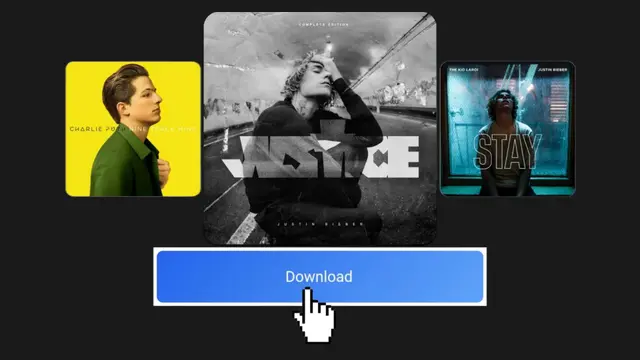
This is the most recommended and straightforward method. If your Chromebook supports Android apps, you’re just a few clicks away from offline music.
Step-by-Step Installation Guide
First, check if your Chromebook supports Google Play Store:
- Open Settings
- Look for Apps
- See if Google Play Store is listed
If it’s available, follow these steps:
- Open Google Play Store
- Search for “Spotify”
- Click Install
- Open the app after installation
- Log in to your Spotify account
That’s it. Spotify will now behave just like it does on an Android phone.
Installation usually takes less than five minutes. Once installed, you can pin it to your taskbar for quick access.
How to Download Songs for Offline Listening

Now comes the part you’ve been waiting for—downloading music.
Here’s how:
- Open Spotify app
- Go to an album or playlist
- Toggle the Download button
- Wait for songs to download
- Enable Offline Mode in settings (optional)
Downloaded songs will have a green arrow icon.
You can download:
- Entire playlists
- Full albums
- Podcasts
But not individual songs unless added to a playlist.
Remember: you must connect to the internet at least once every 30 days to keep downloads active.
This method is smooth, reliable, and perfect for most users.