How to Download Spotify Songs on iPhone
Introduction to Downloading Spotify Songs on iPhone
Let’s be honest—nothing is more frustrating than your favorite song cutting off right at the best part because your internet signal drops. Whether you’re on a flight, stuck in a subway tunnel, or hiking somewhere far from Wi-Fi, streaming music isn’t always reliable. That’s where downloading Spotify songs on your iPhone becomes a game-changer.
Spotify has made it incredibly convenient to take your music anywhere, but many users still don’t fully understand how the download feature works. Is it really downloaded? Can you keep it forever? Does it take up space? These are questions almost every iPhone user has asked at some point.
Downloading songs from Spotify allows you to listen offline without burning through your mobile data. Think of it as packing your suitcase before a trip—you prepare your music in advance so you’re never left bored or disconnected. The process is straightforward, but there are a few requirements and tips that can make your experience smoother.
In this guide, you’ll learn exactly how to download Spotify songs on iPhone, step by step. You’ll also discover how to manage your downloads, save storage space, troubleshoot issues, and optimize audio quality. By the time you’re done reading, you’ll feel completely confident navigating Spotify’s offline features like a pro.
Ready to take control of your listening experience? Let’s dive in.
Understanding Spotify Free vs. Premium

Before you even think about downloading songs on Spotify, there’s one crucial detail you need to understand: downloading is a Premium-only feature. Yes, that’s right. If you’re using Spotify Free, you won’t be able to download songs for offline listening on your iPhone.
Spotify Free allows you to stream music online with ads. You can create playlists, discover new music, and enjoy curated recommendations. However, when it comes to offline access, the door is closed. It’s like window shopping—you can look at everything, but you can’t take it home.
Spotify Premium, on the other hand, unlocks several powerful features:
- Offline downloads
- Ad-free listening
- Unlimited skips
- Higher audio quality
- On-demand playback
For iPhone users who travel often, commute daily, or simply want uninterrupted listening, Premium is usually worth the investment. Think of it as upgrading from basic cable to premium streaming—you get flexibility and control.
Premium plans come in different options: Individual, Duo, Family, and Student. Each offers offline downloads across multiple devices (up to five devices per account, with 10,000 songs per device).
If your goal is to download Spotify songs directly onto your iPhone and enjoy them without Wi-Fi or cellular data, upgrading to Premium is the first step. Without it, the download toggle simply won’t appear.
Now that we’ve cleared that up, let’s move on to why downloading music is such a smart move.
Why Download Spotify Songs on iPhone?
You might be wondering: if I have unlimited data, do I really need to download songs? The short answer? Absolutely.
Downloading Spotify songs on your iPhone gives you freedom. Imagine driving through an area with spotty coverage. Streaming suddenly stops. Silence fills the car. Annoying, right? Downloaded songs eliminate that problem completely.
Here are some compelling reasons to download your music:
1. Save Mobile Data
Streaming music consumes data—especially at high audio quality. If you’re listening for hours daily, that adds up quickly. Downloading songs over Wi-Fi helps you avoid surprise data charges.
2. Reliable Playback Anywhere
Airplanes, subways, rural areas—offline downloads ensure your music plays without interruption. No buffering. No awkward pauses.
3. Better Battery Efficiency
Streaming continuously uses more battery than playing downloaded files. If you’re on a long trip, offline listening can help extend your iPhone’s battery life.
4. Seamless Listening Experience
When songs are downloaded, they start instantly. No loading delays. It feels smoother and more responsive.
Downloading music is like meal prepping. You prepare in advance so you don’t struggle later. It’s a simple step that dramatically improves your everyday listening experience.
Now let’s look at what you need before getting started.
Requirements Before Downloading Spotify Songs

Before you tap that download button, make sure everything is properly set up. Think of this as your pre-flight checklist.
Spotify Account Setup
First and foremost, you need an active Spotify Premium subscription. If you’re using the free version, downloading isn’t possible on iPhone. Check your account status under:
Spotify App → Settings → Account
If you’re not Premium yet, upgrading takes only a few minutes inside the app.
Stable Internet Connection
You’ll need Wi-Fi or a stable mobile data connection to download songs initially. Spotify downloads files from its servers and stores them locally within the app. Once downloaded, you can switch to offline mode.
For faster downloads and to avoid data usage, Wi-Fi is recommended.
Updated Spotify App
An outdated app can cause download buttons to disappear or malfunction. Always make sure you’re using the latest version from the App Store.
To check:
- Open the App Store
- Search for Spotify
- Tap Update if available
Keeping your app updated ensures smoother downloads and fewer glitches.
Once these three boxes are checked, you’re fully prepared to start downloading your favorite playlists and albums directly to your iPhone.
Step-by-Step Guide: How to Download Spotify Songs on iPhone
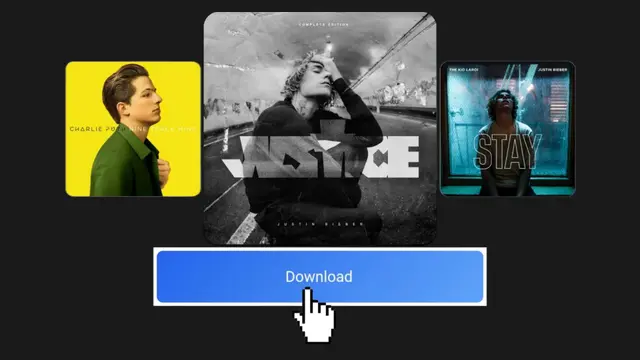
Now let’s get to the heart of the matter. Here’s exactly how to download Spotify songs on your iPhone.
Step 1: Open the Spotify App
Launch the Spotify app and log into your Premium account. Make sure you’re connected to the internet.
Step 2: Find the Music You Want
Search for:
- A playlist
- An album
- Or a collection you’ve already saved
Spotify currently allows downloads for playlists and albums. You cannot directly download a single track unless it’s inside a playlist.
Step 3: Tap the Download Toggle
Once you open a playlist or album, look for the Download switch near the top.
- Tap the toggle.
- It will turn green.
- A small downward arrow icon will appear next to each song as it downloads.
The download process may take a few seconds or minutes depending on your internet speed and playlist size.
Step 4: Enable Offline Mode (Optional)
To ensure you’re only playing downloaded content:
- Go to Settings
- Tap Playback
- Toggle on Offline Mode
This guarantees that Spotify only plays downloaded songs.
And just like that—you’ve successfully downloaded Spotify songs on your iPhone.
But there’s more to explore, including managing downloads and improving audio quality.